How to Play & Host BuzzerBug: The Ultimate Gameplay Manual
A comprehensive manual explaining how Buzzer/Quiz modes work, hosting mechanics, spectator TV displays, and how to incorporate custom presentations/Google Slides.
2026-05-28 · 8 min read · BuzzerBug™ Team

How BuzzerBug Gameplay Works
BuzzerBug is designed to turn any group gathering, classroom, or virtual meeting into a high-energy, real-time game show. The platform supports two core interaction flows: Quiz Mode (where players answer multiple-choice questions on their screens) and Buzzer Mode (where the first player to tap their screen wins the floor to speak the answer).
Let's break down the rules, roles, and setup.
1. How Quiz Mode Works
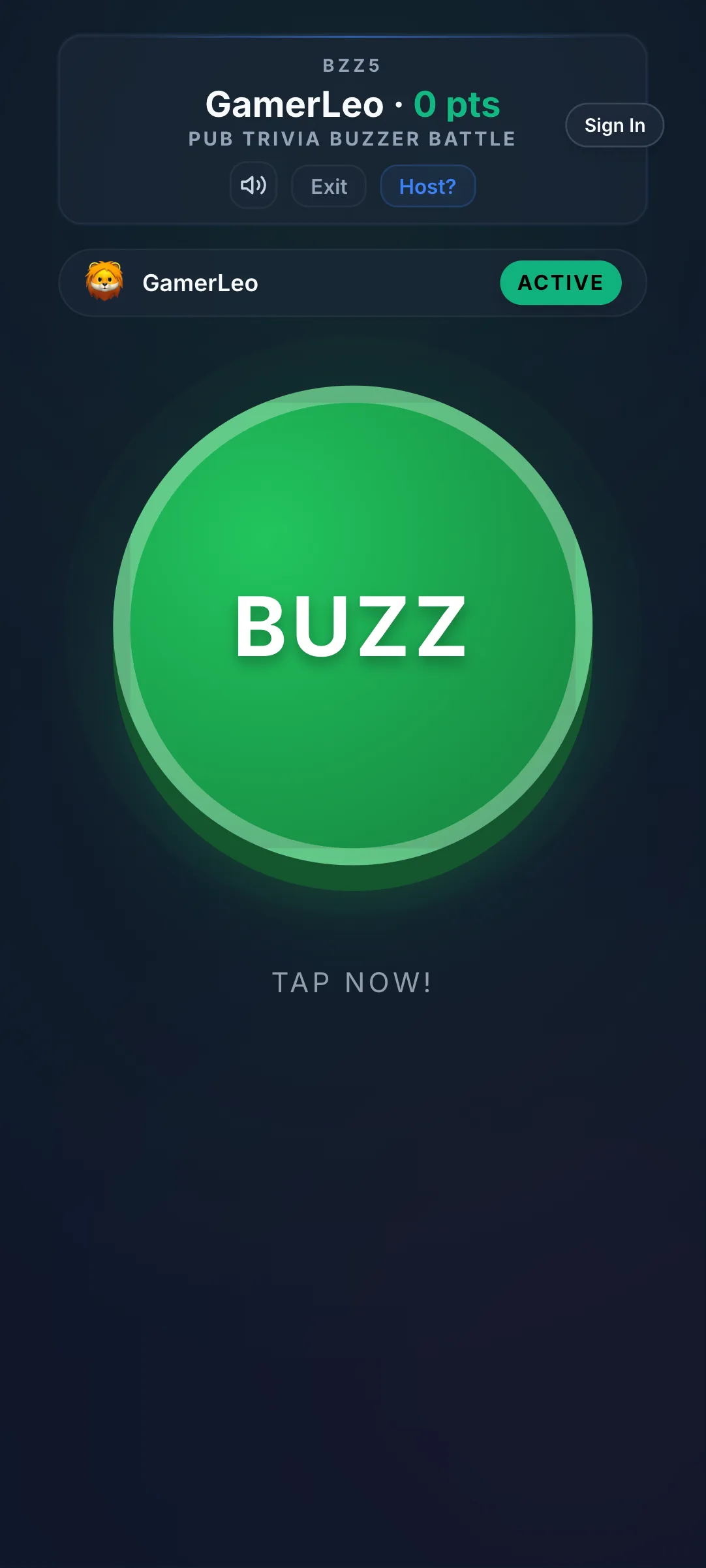
Quiz Mode is a structured, question-and-answer format based on multiple-choice quizzes.
Question Styles & Speed Points
- Point Scaling: Each question has a base point value (e.g. 10 points). In standard play, the faster you answer correctly, the more points you receive. The points scale down linearly based on the remaining time.
- Negative Scoring: If negative scoring is enabled, players who choose an incorrect answer will lose a portion of the question's point value. Think carefully before guessing!
- Multi-Winner Mode: If enabled, multiple players can receive points for a correct answer during the round, rather than just the first player to answer.
💡 Tip
💡 Standard Multiple Choice (MCQ) games reward speed. You will earn more points by answering quickly!
"Did You Know" Explanation Screen
After each question is answered and scores are updated, BuzzerBug displays a transition screen containing a fun fact or informational context.
- Answer Verification: This screen shows the correct answer and a did-you-know fact to help players learn more about the topic.
- Skippable Mechanic: If a question is marked as "skippable" in the quiz settings, the game will bypass this explanation screen automatically if all active participants answered correctly.
- Skip Control: The host can click the "SKIP FUN FACT" button at any time to bypass the countdown and move directly to the next question.
ℹ️ Note
ℹ️ The skippable mechanic is an excellent feature for seasoned players. If everyone gets the question correct, BuzzerBug bypasses the fact screen to keep the game moving fast!
2. How Hosting Mode Works
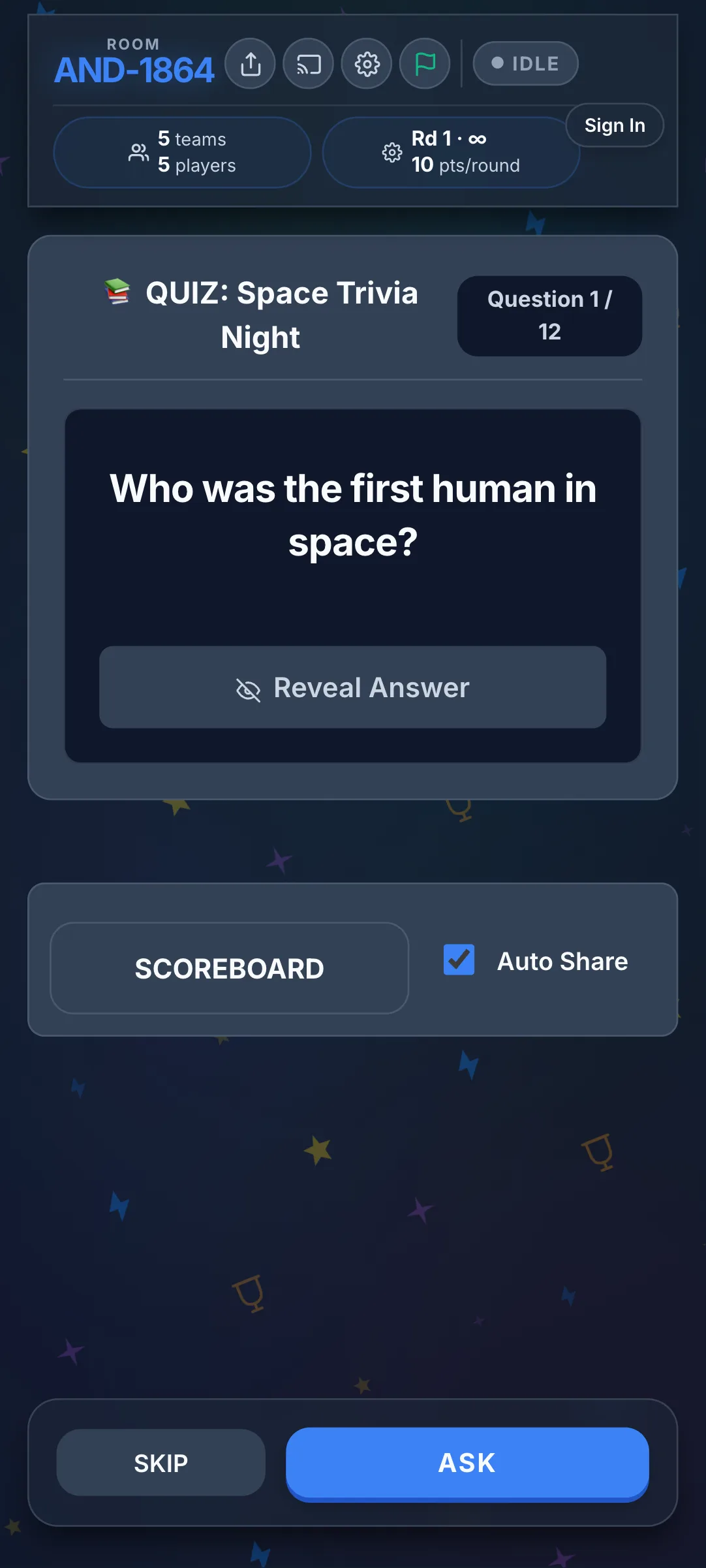
Every game needs an orchestrator. In BuzzerBug, you can choose between two hosting styles: AI Host (Bot Mode) and Live Host (Moderator Mode).
AI Host (Bot Mode)
- Automatic Orchestration: Perfect for when you want to play along with your friends. The AI runs the game loop automatically, asking questions, enforcing timeouts, transitioning to explanation screens, and advancing to the next round with no manual operation.
- Solo Play: You can play completely alone against AI bot competitors to practice your trivia skills and track your scores on your profile.
💡 Tip
💡 Bot Mode is perfect for solo study or casual play. The AI Bot takes over all host duties so you can focus entirely on competing!
Live Host (Moderator Mode)
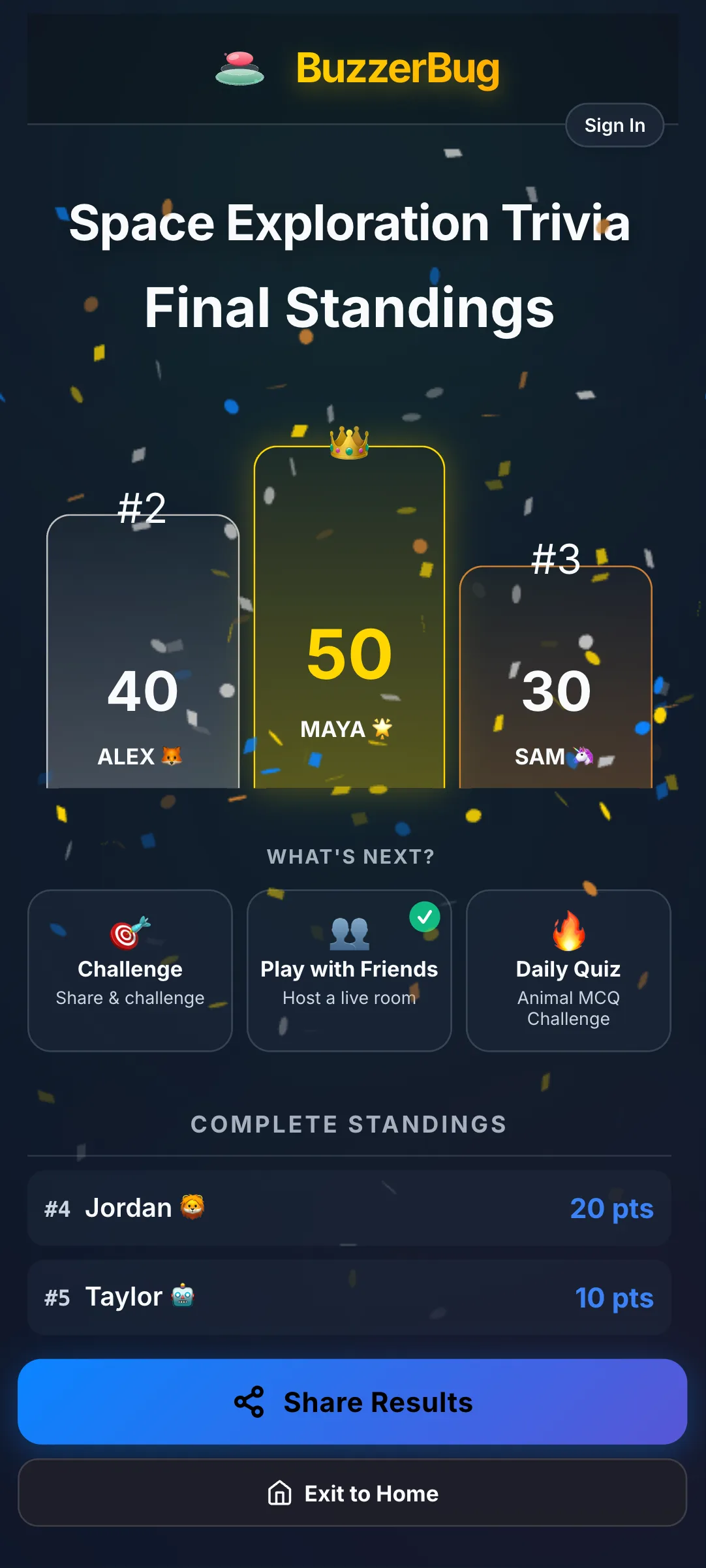
- Full Control: Best for trivia nights and classrooms. As the moderator, you control the pace of the game. You decide when to start the countdown, when to reveal the answer, and manually award or deduct points for verbal answers.
- Spectator Screen (TV View): For the ultimate game show experience, open the TV View on a separate laptop or cast it to a large screen/projector. The TV view displays a high-fidelity leaderboard, active timer rings, question text, and spectator cards during explanation screens.
⚠️ Warning
⚠️ Ensure that your TV Spectator Screen is cast to a large display before starting the game so players can see the real-time scoreboard.
3. Incorporating Custom Slides in Host Mode
For a fully tailored corporate presentation, classroom lesson, or custom trivia night, you can incorporate your own slides (e.g., Google Slides or PDF files) directly into your Live Host room.
How to Configure Slides
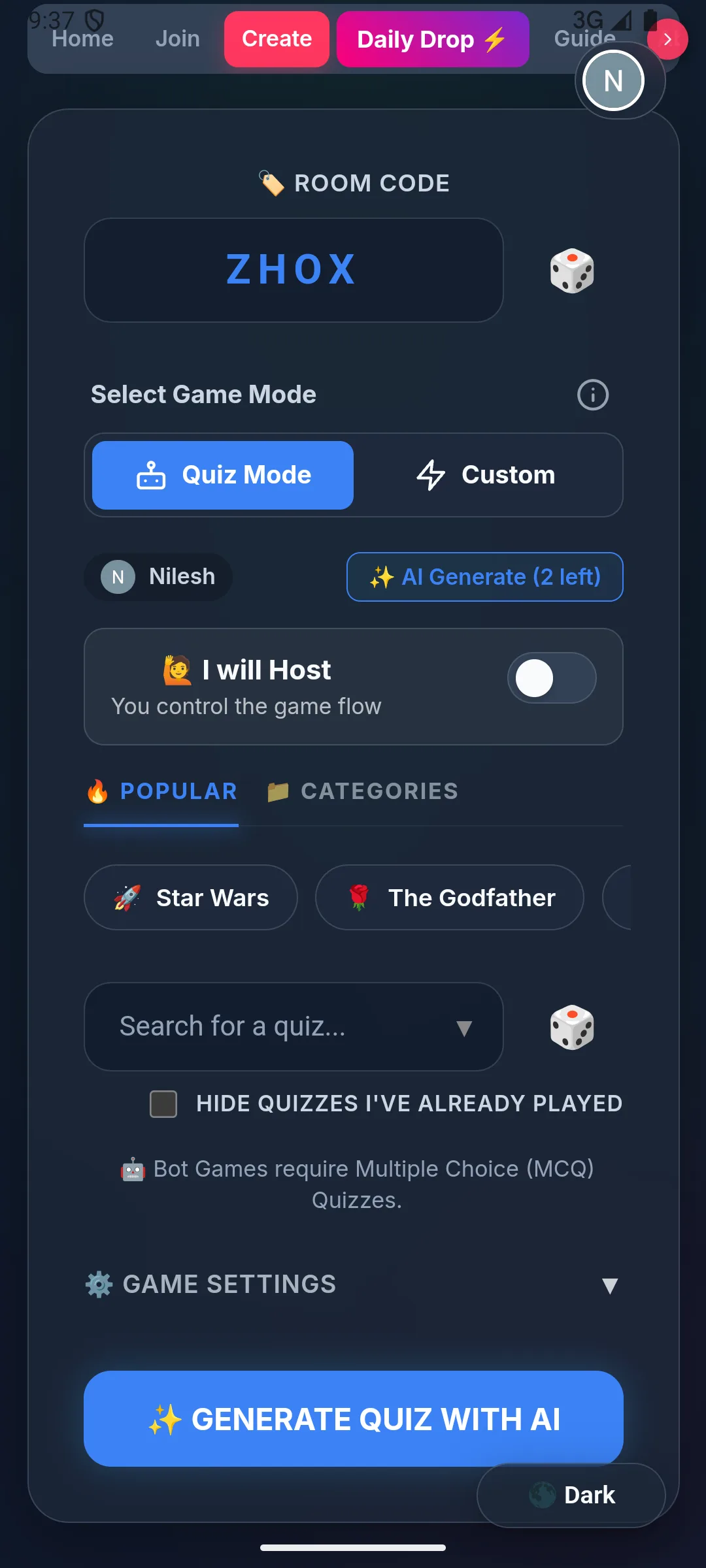
- Choose manual setup: When creating a room under Step 2 (Find Your Content), switch to the Verbal / Real-time tab.
- Provide your link: Paste your public Google Slides link or PDF presentation URL into the slides input field.
- Launch the game: Click "Let's Go & Invite" to open the Host control panel.
Syncing Slides with Gameplay
- Host Controls: In Moderator Mode, the Host control panel displays standard presentation control buttons ("Next Slide" and "Prev Slide") directly alongside the buzzer state buttons.
- Spectator Sync: As the host clicks "Next Slide" or "Prev Slide", the slide deck updates in real-time on the spectator TV View screen using WebSockets.
- Seamless Flow: This allows you to show a custom slide (e.g., explaining a company milestone or presenting a visual clue), then prompt players to buzz in directly from their phones, all without ever leaving the BuzzerBug environment.
ℹ️ Note
ℹ️ Slide presentation URLs must be set to "Anyone with the link can view" in Google Slides for spectator screens to load them.
Ready to Play?
Create a free game room in seconds. No download, no account needed for players.
Start a Free Quiz Game